PowerShell command Windows PC: The Best Simple Trick
PowerShell command Windows PC is a simple yet effective way to optimize your new device.
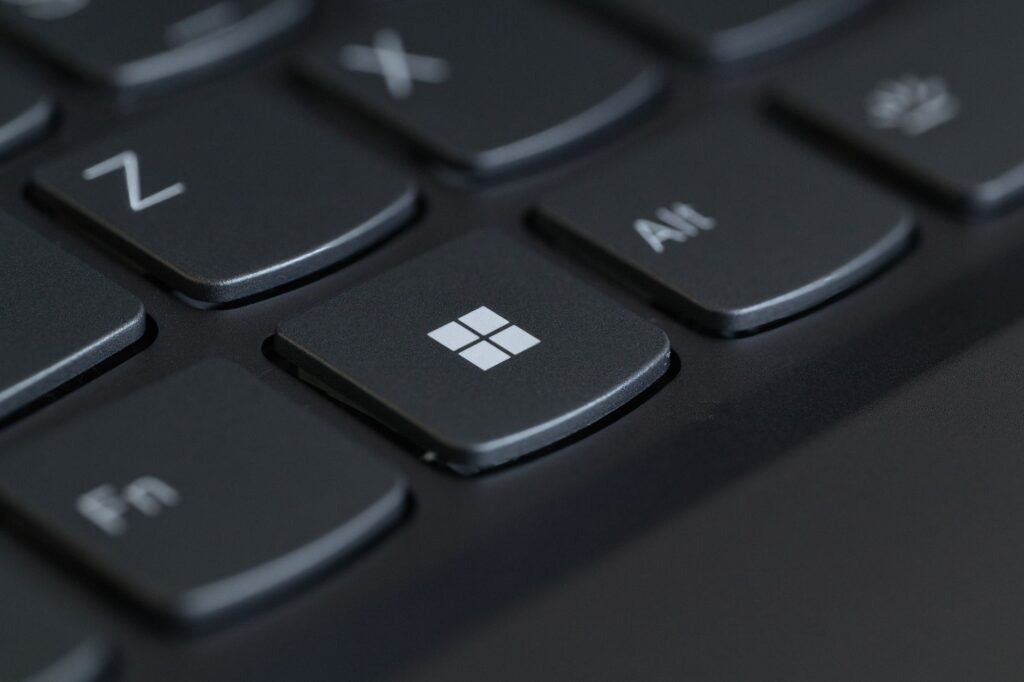
PowerShell command Windows PC is the first thing I did on my new Windows PC. This command can significantly enhance your user experience and system performance.
What is PowerShell?
PowerShell is a powerful command-line shell and scripting language designed for system administration and automation tasks on Windows PCs. It provides a comprehensive framework that allows users to manage and automate the administration of the operating system and applications.
Unlike traditional command prompt commands, PowerShell commands are built on the .NET framework, enabling users to utilize advanced programming concepts and object-oriented features. This distinction allows for a more versatile and robust environment, making it easier to handle complex tasks and automate repetitive processes.
One of the key advantages of using PowerShell is its ability to work with a wide range of system components. Users can interact with the file system, registry, and other parts of the operating system, making it an essential tool for IT professionals and system administrators.
Additionally, PowerShell supports cmdlets, which are specialized .NET classes designed to perform specific functions. This makes it easier for users to execute tasks with simple commands. For instance, the Get-Process cmdlet allows users to retrieve information about running processes, while the Set-ExecutionPolicy cmdlet lets users manage script execution policies.
Overall, understanding how to use PowerShell commands on a Windows PC can significantly enhance productivity and efficiency in system management.
How to Access PowerShell on Windows
Accessing PowerShell on a Windows PC is a straightforward process that allows users to leverage its powerful capabilities. Whether you are a beginner or an experienced user, knowing how to open PowerShell can enhance your productivity significantly.
To access PowerShell, follow these simple steps:
- Using the Start Menu: Click on the Start button on your taskbar. Type PowerShell into the search bar. From the search results, you can right-click on Windows PowerShell and select Run as administrator for elevated permissions.
- Using the Run Dialog: Press Windows Key + R to open the Run dialog. Type powershell and hit Enter. This method opens PowerShell with standard user permissions.
- Using File Explorer: Navigate to C:\Windows\System32. Scroll down to find Windows PowerShell and double-click to open it.
Once you have PowerShell open, you can start executing commands to customize your Windows PC’s settings and functionalities. Remember, the PowerShell command on Windows PC can perform a variety of tasks, so familiarize yourself with its commands to make the most out of this tool.
Top Benefits of Using PowerShell
PowerShell has become an essential tool for many Windows PC users, and its benefits are undeniable. Here are some of the top advantages of using PowerShell commands:
- Automation: One of the most significant benefits of PowerShell is its ability to automate repetitive tasks. With just a few commands, users can streamline processes that would otherwise take a lot of time when done manually.
- Powerful Scripting Capabilities: PowerShell enables users to create scripts that can perform complex operations. This feature is invaluable for IT professionals who need to manage multiple systems efficiently.
- Access to System Management: Using PowerShell commands on a Windows PC provides direct access to system management functions. Users can easily configure settings, install software, and manage system resources.
- Integration with Other Tools: PowerShell integrates seamlessly with other applications and services, making it easier to perform tasks across different platforms. This flexibility enhances productivity.
- Community Support: The PowerShell community is vast and active. Users can find numerous scripts, tutorials, and forums to help troubleshoot issues or learn new techniques.
Overall, leveraging PowerShell commands on a Windows PC not only saves time but also enhances the overall computing experience.
Essential PowerShell Commands for Beginners
For those new to using a Windows PC, learning some essential PowerShell commands can greatly enhance your productivity and system management skills. Here are a few basic commands that every beginner should know:
- Get-Help: This command is your go-to for learning about other commands. Simply type Get-Help [command] to understand what a specific command does and how to use it.
- Get-Command: Use this command to find available commands within PowerShell. It’s especially useful if you’re unsure of the exact command you need.
- Get-Service: This command allows you to view all the services running on your Windows PC. You can stop, start, or restart services using additional parameters.
- Set-ExecutionPolicy: This is important for running scripts. It sets the user preference for the PowerShell script execution policy. Be cautious with this command as it can affect security.
- Get-Process: This command helps you monitor the processes running on your PC. You can see details like CPU usage and memory consumption.
By familiarizing yourself with these commands, you’ll be well-equipped to leverage the full potential of PowerShell on your Windows PC. Remember, practice makes perfect, so don’t hesitate to experiment with different commands and their parameters.
Troubleshooting Common PowerShell Issues
Troubleshooting common PowerShell issues can significantly enhance your experience when using this powerful tool on your Windows PC. Even though PowerShell is designed to be user-friendly, you might encounter some challenges along the way. Here are some common issues and their solutions:
- Execution Policy Errors: If you receive an error regarding the execution policy, it means your PC is not allowing scripts to run. You can resolve this by running the following command: Set-ExecutionPolicy RemoteSigned, which permits local scripts to run while requiring remote scripts to be signed.
- Command Not Found: This error often occurs when you type a command incorrectly or the command is not available in your current session. Double-check your spelling and ensure that the module containing the command is imported. You can use Get-Command to list available commands.
- Permission Denied: If you encounter a permission error, make sure to run PowerShell as an administrator. Right-click the PowerShell icon and select “Run as administrator” to gain the necessary permissions.
- Performance Issues: If PowerShell is running slowly, consider closing unnecessary applications or restarting your PC to free up resources.
By addressing these common PowerShell issues, you can ensure a smoother and more efficient experience while executing commands on your Windows PC.
PowerShell vs. Command Prompt: Key Differences
When it comes to managing your Windows PC, two powerful tools come to mind: PowerShell and Command Prompt. While both serve the purpose of command-line interface, they have distinct features and capabilities that set them apart.
PowerShell is built on the .NET framework and is designed for task automation and configuration management. It allows users to run PowerShell commands that can manage not only the operating system but also applications and services. This versatility makes it an ideal choice for advanced users and system administrators.
On the other hand, Command Prompt is more of a legacy tool that has been around since the early days of Windows. It primarily executes basic commands and scripts, making it suitable for simpler tasks. Here are some key differences:
- Functionality: PowerShell can handle complex scripting and automation, whereas Command Prompt is limited to basic commands.
- Output: PowerShell outputs objects, enabling more interactive and programmable results, while Command Prompt outputs plain text.
- Syntax: PowerShell uses cmdlets with a verb-noun syntax, making commands more intuitive compared to Command Prompt’s straightforward commands.
Understanding these differences can help users choose the right tool for their needs, especially when using a PowerShell command on their Windows PC.
Getting Started with PowerShell Scripts
Getting started with PowerShell scripts can seem daunting, but it’s easier than you might think. PowerShell is a powerful tool that allows users to automate tasks and manage system configurations on their Windows PC. Here are some simple steps to help you begin your journey with PowerShell:
- Open PowerShell: Launch it by searching for “PowerShell” in the Start menu. You can choose to run it as an administrator for more advanced commands.
- Familiarize Yourself with the Interface: The PowerShell window may look different from a traditional command prompt. Take a moment to explore the layout and features available.
- Start with Basic Commands: Begin by executing simple commands like Get-Help to understand the available options. This command provides a wealth of information about using PowerShell.
- Create Your First Script: Open a text editor, write your script using PowerShell syntax, and save it with a .ps1 extension. Running this script will allow you to see how PowerShell commands can automate tasks on your Windows PC.
- Practice Regularly: The more you use PowerShell, the more comfortable you will become. Regular practice will help solidify your understanding of various commands and their functionalities.
By following these steps, you can easily get started with PowerShell scripts and unlock the full potential of your Windows PC.
The PowerShell command Windows PC users can utilize offers a straightforward way to automate tasks and enhance productivity. By mastering this PowerShell command Windows PC, you can streamline your workflow significantly.
Photo by Ruben Boekeloo on Pexels
Read the original
Reverse Coral Bleaching: Quick Proven Method Discovered · Google model upgrades: The Best Reasons for Gemini 4 Flash · Touchscreen MacBook debut: Clear expectations for November 6